> ## Documentation Index
> Fetch the complete documentation index at: https://mintlify.com/b1ink0/vassist/llms.txt
> Use this file to discover all available pages before exploring further.
# AI Toolbar
> Context-aware AI tools that appear when you select text or interact with images
The AI Toolbar is VAssist's context-aware interface that appears when you select text or hover over images on any website. It provides instant access to powerful AI features powered by Chrome's built-in Gemini Nano model.
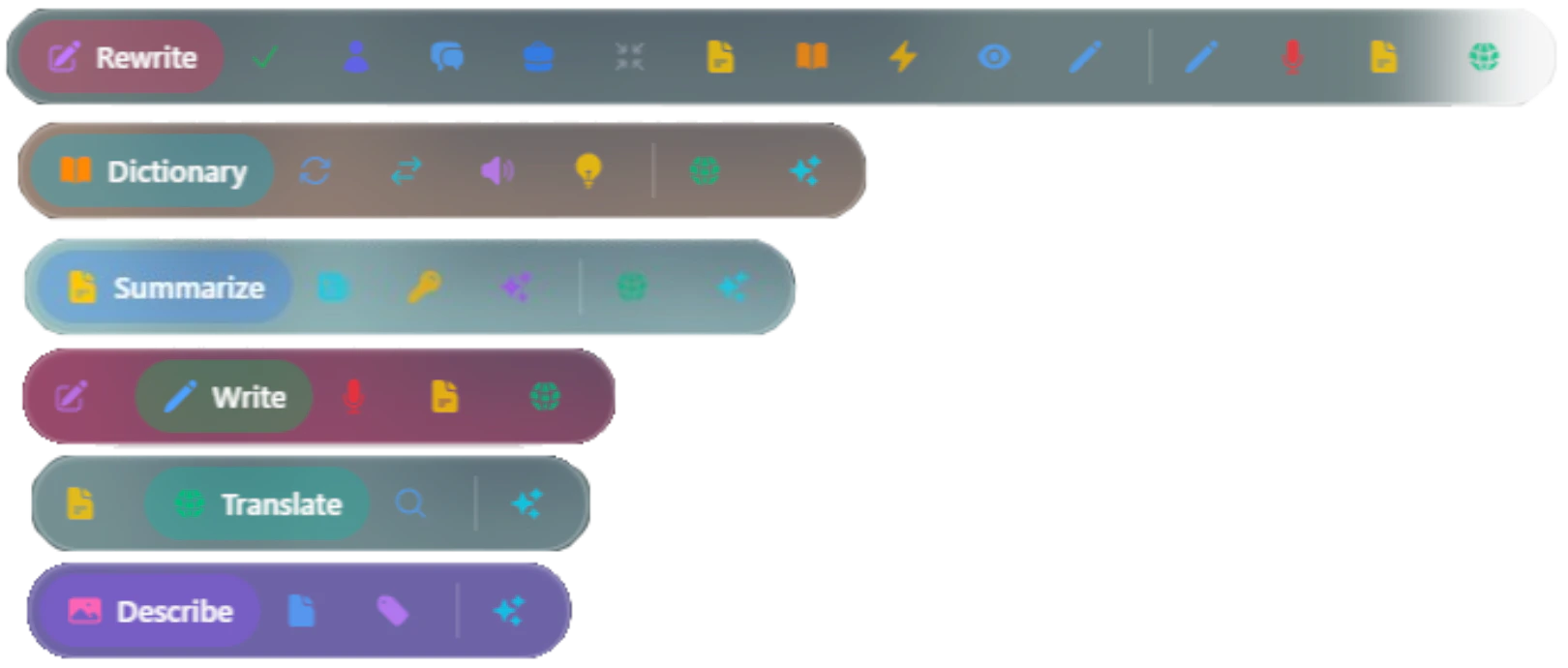 ## Text Selection Features
Select any text on any webpage to reveal the AI toolbar with these features:
### Summarize
Turn walls of text into digestible chunks using Chrome's **Summarizer API**. Get three types of summaries:
* **Headline** - One punchy line that captures the essence
* **Key Points** - Bullet list of main ideas
* **Teaser** - Short preview that hooks you in
```javascript Summarizer API theme={null}
// Chrome's built-in Summarizer API
const summarizer = await self.aiSummarizer.create({
type: 'tldr',
format: 'plain-text',
length: 'medium'
});
const result = await summarizer.summarize(selectedText);
```
**Configuration options:**
* **Type**: `tldr`, `key-points`, `teaser`, `headline`
* **Format**: `plain-text`, `markdown`
* **Length**: `short`, `medium`, `long`
### Translate
## Text Selection Features
Select any text on any webpage to reveal the AI toolbar with these features:
### Summarize
Turn walls of text into digestible chunks using Chrome's **Summarizer API**. Get three types of summaries:
* **Headline** - One punchy line that captures the essence
* **Key Points** - Bullet list of main ideas
* **Teaser** - Short preview that hooks you in
```javascript Summarizer API theme={null}
// Chrome's built-in Summarizer API
const summarizer = await self.aiSummarizer.create({
type: 'tldr',
format: 'plain-text',
length: 'medium'
});
const result = await summarizer.summarize(selectedText);
```
**Configuration options:**
* **Type**: `tldr`, `key-points`, `teaser`, `headline`
* **Format**: `plain-text`, `markdown`
* **Length**: `short`, `medium`, `long`
### Translate
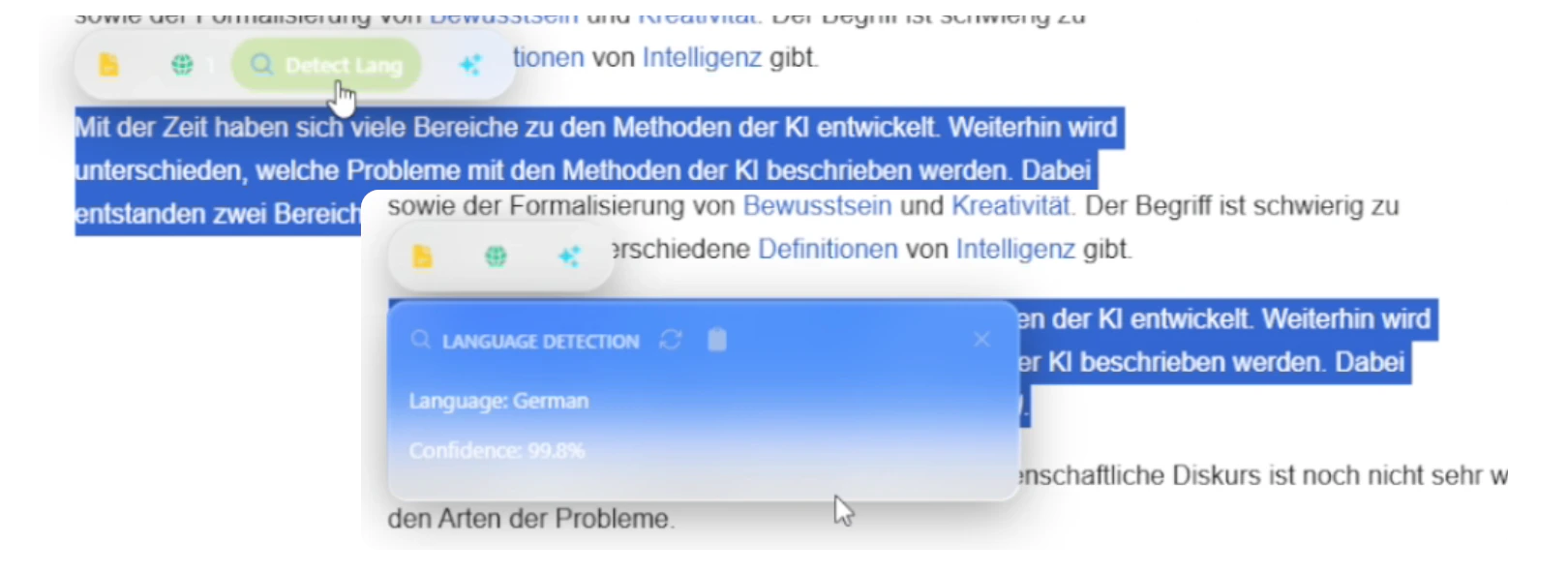 Speak any language with Chrome's **Translator API** and **Language Detector API**:
* Translate to 100+ languages instantly
* Auto-detect source language
* Works completely offline
* No external API calls required
```javascript Translation API theme={null}
// Auto-detect source language
const detector = await self.translation.createDetector();
const results = await detector.detect(text);
const sourceLang = results[0].detectedLanguage;
// Translate to target language
const translator = await self.translation.createTranslator({
sourceLanguage: sourceLang,
targetLanguage: 'es'
});
const translated = await translator.translate(text);
```
**Supported languages include:**
* English, Spanish, French, German, Italian, Portuguese
* Chinese, Japanese, Korean
* Arabic, Hindi, Russian
* And 100+ more languages
### Rewrite
Make your words shine with Chrome's **Rewriter API**:
Clean up spelling and grammar mistakes
Go formal, casual, or professional
Make it shorter, expand it, or keep it concise
Simplify complex sentences
```javascript Rewriter API theme={null}
const rewriter = await self.aiRewriter.create({
tone: 'formal',
format: 'as-is',
length: 'as-is'
});
const rewritten = await rewriter.rewrite(text, {
context: 'Professional email to a client'
});
```
**Tone options:**
* `as-is` - Keep original tone
* `formal` - Professional and polished
* `casual` - Friendly and conversational
**Length options:**
* `as-is` - Keep original length
* `shorter` - Make it more concise
* `longer` - Expand with more detail
### Dictionary
Your personal word expert using Chrome's **Prompt API** (Gemini Nano):
Get clear, concise definitions
Find alternative words
Learn how to say it
See real usage in context
### Writer
Generate fresh content from scratch using Chrome's **Writer API**:
* Create content based on your ideas
* Works with selected text as context
* Perfect for brainstorming and drafting
* Specify tone, format, and length
```javascript Writer API theme={null}
const writer = await self.aiWriter.create({
tone: 'neutral',
format: 'plain-text',
length: 'medium'
});
const content = await writer.write(
'Write a brief introduction about AI assistants',
{ context: selectedText }
);
```
## Image Tools
Hover over any image on a webpage to access AI-powered image analysis:
**Multimodal Prompt API**
AI tells you what's in the image with detailed descriptions
**OCR**
Pull out text from screenshots, photos, and documents
**Object Detection**
Spot and label things in photos automatically
```javascript Image Analysis theme={null}
// Describe image content
const session = await self.LanguageModel.create({
temperature: 1.0,
topK: 3
});
const description = await session.prompt(
'Describe this image in detail',
{ image: imageElement }
);
```
## Voice Dictation
Speak any language with Chrome's **Translator API** and **Language Detector API**:
* Translate to 100+ languages instantly
* Auto-detect source language
* Works completely offline
* No external API calls required
```javascript Translation API theme={null}
// Auto-detect source language
const detector = await self.translation.createDetector();
const results = await detector.detect(text);
const sourceLang = results[0].detectedLanguage;
// Translate to target language
const translator = await self.translation.createTranslator({
sourceLanguage: sourceLang,
targetLanguage: 'es'
});
const translated = await translator.translate(text);
```
**Supported languages include:**
* English, Spanish, French, German, Italian, Portuguese
* Chinese, Japanese, Korean
* Arabic, Hindi, Russian
* And 100+ more languages
### Rewrite
Make your words shine with Chrome's **Rewriter API**:
Clean up spelling and grammar mistakes
Go formal, casual, or professional
Make it shorter, expand it, or keep it concise
Simplify complex sentences
```javascript Rewriter API theme={null}
const rewriter = await self.aiRewriter.create({
tone: 'formal',
format: 'as-is',
length: 'as-is'
});
const rewritten = await rewriter.rewrite(text, {
context: 'Professional email to a client'
});
```
**Tone options:**
* `as-is` - Keep original tone
* `formal` - Professional and polished
* `casual` - Friendly and conversational
**Length options:**
* `as-is` - Keep original length
* `shorter` - Make it more concise
* `longer` - Expand with more detail
### Dictionary
Your personal word expert using Chrome's **Prompt API** (Gemini Nano):
Get clear, concise definitions
Find alternative words
Learn how to say it
See real usage in context
### Writer
Generate fresh content from scratch using Chrome's **Writer API**:
* Create content based on your ideas
* Works with selected text as context
* Perfect for brainstorming and drafting
* Specify tone, format, and length
```javascript Writer API theme={null}
const writer = await self.aiWriter.create({
tone: 'neutral',
format: 'plain-text',
length: 'medium'
});
const content = await writer.write(
'Write a brief introduction about AI assistants',
{ context: selectedText }
);
```
## Image Tools
Hover over any image on a webpage to access AI-powered image analysis:
**Multimodal Prompt API**
AI tells you what's in the image with detailed descriptions
**OCR**
Pull out text from screenshots, photos, and documents
**Object Detection**
Spot and label things in photos automatically
```javascript Image Analysis theme={null}
// Describe image content
const session = await self.LanguageModel.create({
temperature: 1.0,
topK: 3
});
const description = await session.prompt(
'Describe this image in detail',
{ image: imageElement }
);
```
## Voice Dictation
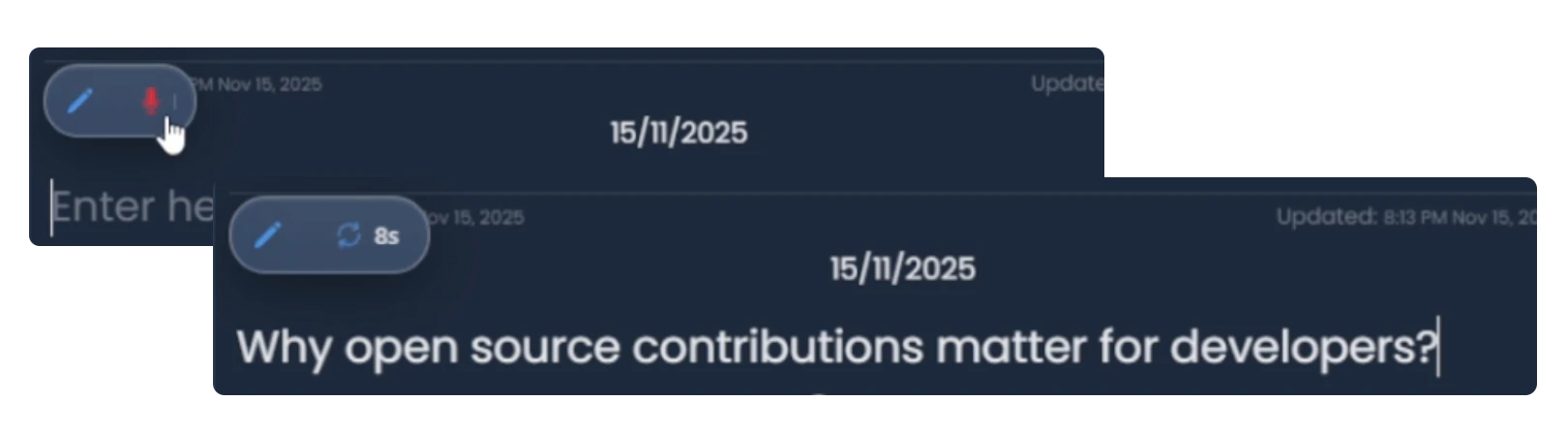 Talk instead of type. The **Multimodal Input API** lets you dictate directly into text fields:
* Click the microphone icon in any text input
* Speak naturally
* Watch your words appear in real-time
* Works completely on-device for privacy
```javascript Voice Input theme={null}
const session = await self.LanguageModel.create({
temperature: 0.1,
topK: 3,
outputLanguage: 'en'
});
const transcription = await session.prompt(
'Transcribe this audio',
{ audio: audioBlob }
);
```
Voice dictation requires the **Multimodal Input** Chrome flag to be enabled. See [Installation](/installation) for setup instructions.
## How It Works
The AI Toolbar uses Chrome's Built-in AI APIs for all processing:
When you select text or focus an input field, VAssist detects the context and displays relevant tools
All AI operations run locally using Gemini Nano - no data leaves your device
Results appear in a floating panel near your selection with options to copy, edit, or apply
## Document Interaction
Beyond text and images, the toolbar provides smart document features:
* **Page Context** - Ask questions about the current page
* **Smart Summaries** - Get instant summaries of articles and documents
* **Content Analysis** - Understand complex content with AI assistance
All toolbar features work seamlessly across any website without requiring additional permissions or external API keys.
## Configuration
Customize toolbar behavior in the Control Panel:
* Enable/disable specific tools
* Set default languages for translation
* Configure summarizer length and format
* Choose rewriter tone preferences
See [Configuration](/guides/configuration) for detailed settings.
## Privacy & Performance
All processing happens on your device. No data sent to external servers.
Chrome's optimized Gemini Nano model provides instant results.
Works out of the box without any API keys or accounts.
Most features work completely offline after initial model download.
## Next Steps
Learn about the conversational chat features
Deep dive into Chrome's built-in AI capabilities
Talk instead of type. The **Multimodal Input API** lets you dictate directly into text fields:
* Click the microphone icon in any text input
* Speak naturally
* Watch your words appear in real-time
* Works completely on-device for privacy
```javascript Voice Input theme={null}
const session = await self.LanguageModel.create({
temperature: 0.1,
topK: 3,
outputLanguage: 'en'
});
const transcription = await session.prompt(
'Transcribe this audio',
{ audio: audioBlob }
);
```
Voice dictation requires the **Multimodal Input** Chrome flag to be enabled. See [Installation](/installation) for setup instructions.
## How It Works
The AI Toolbar uses Chrome's Built-in AI APIs for all processing:
When you select text or focus an input field, VAssist detects the context and displays relevant tools
All AI operations run locally using Gemini Nano - no data leaves your device
Results appear in a floating panel near your selection with options to copy, edit, or apply
## Document Interaction
Beyond text and images, the toolbar provides smart document features:
* **Page Context** - Ask questions about the current page
* **Smart Summaries** - Get instant summaries of articles and documents
* **Content Analysis** - Understand complex content with AI assistance
All toolbar features work seamlessly across any website without requiring additional permissions or external API keys.
## Configuration
Customize toolbar behavior in the Control Panel:
* Enable/disable specific tools
* Set default languages for translation
* Configure summarizer length and format
* Choose rewriter tone preferences
See [Configuration](/guides/configuration) for detailed settings.
## Privacy & Performance
All processing happens on your device. No data sent to external servers.
Chrome's optimized Gemini Nano model provides instant results.
Works out of the box without any API keys or accounts.
Most features work completely offline after initial model download.
## Next Steps
Learn about the conversational chat features
Deep dive into Chrome's built-in AI capabilities