> ## Documentation Index
> Fetch the complete documentation index at: https://mintlify.com/b1ink0/vassist/llms.txt
> Use this file to discover all available pages before exploring further.
# Virtual Companion
> Animated 3D character with lip-synced speech, emotions, and interactive behaviors
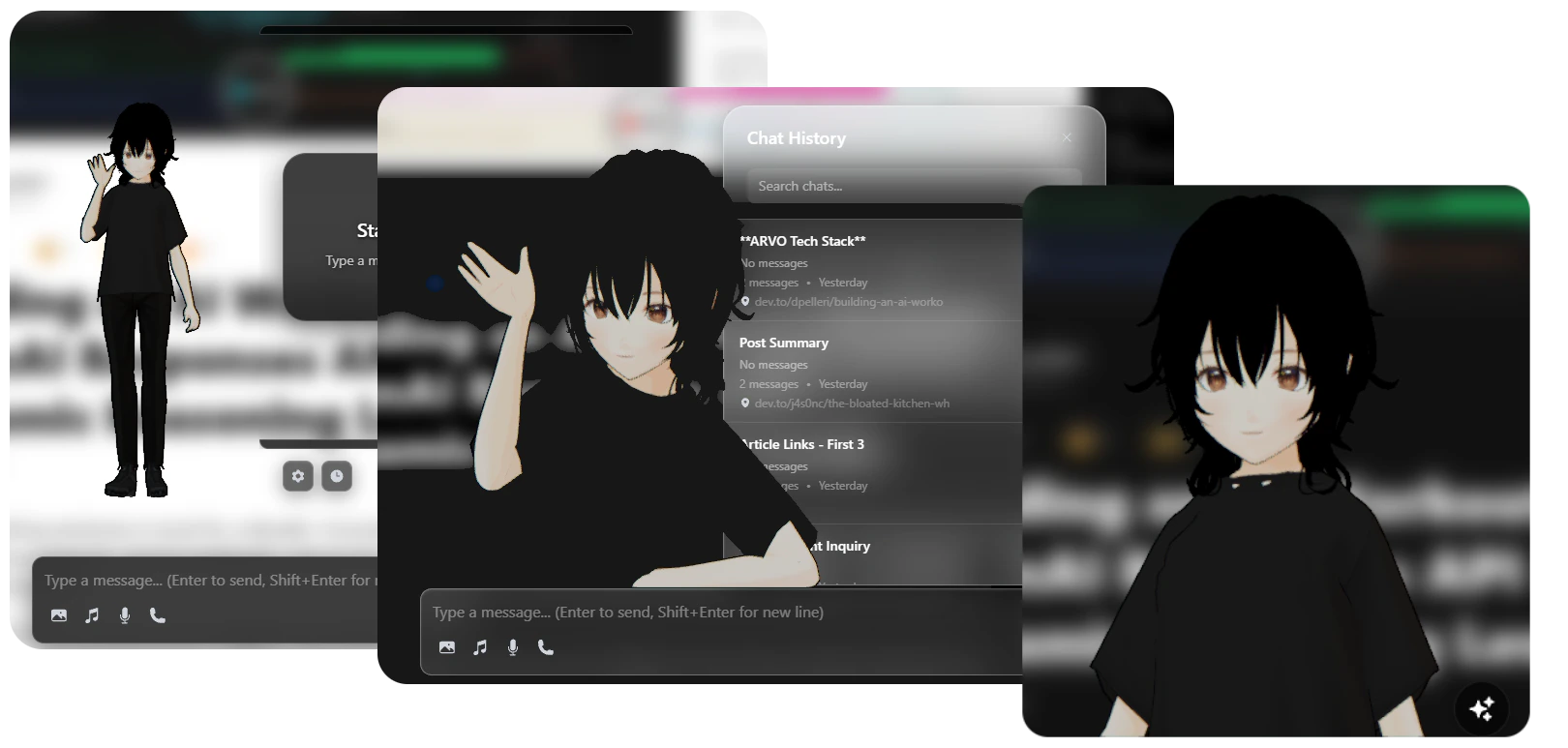
The Virtual Companion is a fully animated 3D character that appears on your screen, making your AI interactions more engaging and human-like. Built with **Babylon.js**, it features realistic animations, lip-synced speech, and dynamic emotional expressions.
 ## Overview
The companion responds to your interactions with expressions, gestures, and animations that match the conversation context. It exists as a draggable overlay that can be positioned anywhere on your screen.
Switch between full body and portrait views
Idle, thinking, speaking, and celebration states
Real-time mouth movements synchronized to speech
Drag anywhere on screen with per-preset saved positions
## Display Modes
Choose how your companion appears on screen:
**Full Body Mode** shows the complete 3D character:
* Entire character model visible
* Full range of body animations
* Hand gestures and full-body expressions
* Larger canvas size for detailed animations
**Best for**: Desktop browsing with larger screens
**Portrait Mode** focuses on the character's upper body:
* Head, shoulders, and upper torso
* Optimized facial expressions
* Lip sync more prominent
* Smaller canvas footprint
**Best for**: Laptop screens or when you need more screen space
### Switching Display Modes
Click the VAssist icon in your browser toolbar
Go to Settings → Scene Configuration
Choose between Full Body and Portrait mode
Changes take effect immediately
```javascript Display Mode Configuration theme={null}
import { SceneConfig } from './config/sceneConfig';
// Configure display mode
const config = {
cameraPreset: 'fullBody', // or 'portrait'
model: {
displayMode: 'full', // 'full' or 'portrait'
scale: 1.0
}
};
```
## Animations
The companion uses a sophisticated animation system with multiple states and smooth transitions.
### Animation States
**Default State** - Subtle breathing and natural movements
* Random idle variations
* Occasional yawns and stretches
* Greeting gestures (waves hello)
* Smooth looping animations
**Duration**: Continuous, switches variants every 10 seconds
```javascript theme={null}
// Idle animations
const idleAnimations = [
'idle_1', // Primary idle with subtle movements
'idle_2', // Secondary idle variant
'idle_4_short',// Short idle loop
'yawn_1', // Yawning animation
'yawn_2', // Alternative yawn
'hi_1', // Waving hello
'hi_2' // Alternative greeting
];
```
**Processing State** - Shows the AI is working
* Thoughtful poses
* Hand-on-chin gestures
* Contemplative expressions
* Auto-switches between variants
**Triggered when**:
* Waiting for AI response
* Processing complex queries
* Analyzing page content
```javascript theme={null}
// Thinking animations
const thinkingAnimations = [
'thinking_1', // Thoughtful pose
'thinking_2' // Alternative thinking animation
];
```
**Active Conversation** - Animated speech with lip sync
* Body gestures matching emotion
* Real-time lip synchronization
* Blended with base animation
* Facial expressions
**Emotion variants**:
* Excited - energetic gestures
* Calm - relaxed movements
* Nervous - anxious body language
* Angry - emphatic gestures
```javascript theme={null}
// Talking animations by emotion
const talkingAnimations = {
excited: 'talk_excited',
nervous: 'talk_nervous',
calm: 'talk_calm',
angry: 'talk_angry'
};
```
**Success State** - Positive feedback animations
* Clapping hands
* Excited jumping
* Happy expressions
* One-shot animation
**Triggered by**:
* Task completion
* Success messages
* Positive user interactions
```javascript theme={null}
// Celebration animations
const celebratingAnimations = [
'clap_1' // Clapping in celebration
];
```
### Animation Blending
The companion uses smooth animation blending for natural transitions:
```javascript Animation Transitions theme={null}
import { TransitionSettings } from './config/animationConfig';
// Smooth transitions between animations
const transitionConfig = {
transitionFrames: 30, // 1 second at 30fps
easingCurve: {
x1: 0.25, // Bezier control points
y1: 0.1,
x2: 0.75,
y2: 0.9
}
};
// Blend from idle to thinking
await animationManager.transition({
from: 'idle_1',
to: 'thinking_1',
duration: transitionConfig.transitionFrames
});
```
**Key features**:
* **Overlap blending** - Old animation fades out while new one fades in
* **Bezier easing** - Smooth S-curve for natural motion
* **Loop transitions** - Seamless cycling of looping animations
* **Weight-based mixing** - Blend multiple animations simultaneously
## Lip-Synced Speech
The companion's mouth movements are synchronized in real-time with text-to-speech output using VMD (Vocaloid Motion Data) generation.
### How Lip Sync Works
Kokoro.js generates speech audio from AI response text
Audio is analyzed to extract phoneme timing data
Phonemes are mapped to mouth shapes (visemes) and converted to VMD format
VMD animation is applied to the character's mouth morphs in real-time
```javascript Lip Sync Pipeline theme={null}
import { VMDHandler } from './services/VMDHandler';
import { TTSService } from './services/TTSService';
// Generate speech with lip sync
const { audio, vmd } = await TTSService.synthesize(text, {
generateVMD: true,
voice: 'af_heart',
speed: 1.0
});
// Play audio and sync mouth movements
await virtualAssistant.speak({
audio,
vmdData: vmd,
baseAnimation: 'talk_calm'
});
```
### Viseme Mapping
The companion uses standard viseme shapes for realistic mouth movements:
| Viseme | Phonemes | Example Words |
| ------ | -------- | ------------------------- |
| A | ah, aa | f**a**ther, h**o**t |
| E | eh, ae | b**e**d, c**a**t |
| I | ih, iy | b**i**t, s**ee** |
| O | oh, ao | g**o**, c**au**ght |
| U | uh, uw | b**oo**k, f**oo**d |
| M | m, p, b | **m**om, **p**et, **b**ig |
| F | f, v | **f**ox, **v**an |
| TH | th, dh | **th**ink, **th**is |
| S | s, z | **s**it, **z**oo |
| T | t, d, n | **t**op, **d**og, **n**o |
| L | l | **l**ove |
| R | r | **r**ed |
Lip sync requires the TTS feature to be enabled. See [Configuration](/guides/configuration) for TTS setup.
## Positioning & Customization
The companion can be freely positioned and customized to suit your workflow.
### Dragging & Positioning
Click on the companion's canvas area
Move the companion anywhere on your screen
Position is automatically saved per display mode
**Position Memory**:
* Each display mode (Full Body / Portrait) remembers its own position
* Positions saved per browser profile
* Persists across browser sessions
```javascript Position Management theme={null}
import { PositionManager } from './babylon/managers/PositionManager';
// Save position for current preset
await PositionManager.savePosition({
preset: 'fullBody',
x: window.innerWidth - 400,
y: window.innerHeight - 600
});
// Load saved position
const position = await PositionManager.loadPosition('fullBody');
```
### Customization Options
Customize the companion's appearance and behavior:
Adjust the companion's display size:
* **Full Body**: 400x600px (default)
* **Portrait**: 300x400px (default)
* Custom sizes available in settings
```javascript theme={null}
{
canvas: {
width: 400,
height: 600,
autoResize: true
}
}
```
Scale the 3D model independently of canvas:
* Range: 0.5 to 2.0
* Default: 1.0
* Affects model size only, not UI elements
```javascript theme={null}
{
model: {
scale: 1.2, // 120% of original size
position: { x: 0, y: -0.5, z: 0 }
}
}
```
Adjust animation playback speed:
* Range: 0.5 to 2.0
* Default: 1.0
* Affects all animations globally
```javascript theme={null}
{
animation: {
globalSpeed: 1.0,
transitionDuration: 30 // frames
}
}
```
Configure scene lighting and visual effects:
* Ambient light intensity
* Directional light position
* Shadow quality
* Background transparency
```javascript theme={null}
{
scene: {
ambientLightIntensity: 0.8,
directionalLight: {
intensity: 1.0,
position: { x: 1, y: 1, z: 1 }
},
backgroundColor: 'transparent'
}
}
```
## Built with Babylon.js
The Virtual Companion leverages **Babylon.js**, a powerful 3D rendering engine, for smooth animations and realistic character rendering.
### Technical Architecture
**Babylon.js** provides:
* WebGL-based 3D rendering
* Hardware-accelerated graphics
* Efficient animation system
* Advanced physics and lighting
```javascript theme={null}
import * as BABYLON from '@babylonjs/core';
// Create Babylon.js scene
const engine = new BABYLON.Engine(canvas);
const scene = new BABYLON.Scene(engine);
// Optimize for performance
scene.skipPointerMovePicking = true;
scene.autoClear = false;
engine.enableOfflineSupport = false;
```
**MikuMikuDance (MMD)** format support:
* PMX model loading
* VMD animation playback
* Morph targets for facial expressions
* Bone-based skeletal animation
```javascript theme={null}
import { MmdRuntime } from '@babylonjs/mmd';
// Load MMD model
const mmdRuntime = new MmdRuntime(scene);
const modelMesh = await mmdRuntime.loadModel(
'model.pmx',
{ buildSkeleton: true }
);
// Play VMD animation
await mmdRuntime.playAnimation('motion.vmd');
```
**AnimationManager** handles:
* State machine for animation states
* Smooth blending between animations
* Composite animation mixing
* Automatic idle variation switching
```javascript theme={null}
import { AnimationManager } from './babylon/managers/AnimationManager';
const animManager = new AnimationManager(mmdRuntime);
// Play animation with blending
await animManager.playAnimation('thinking_1', {
transitionDuration: 30,
loop: true,
weight: 1.0
});
// Blend multiple animations
await animManager.playComposite([
{ id: 'idle_1', weight: 0.6 },
{ id: 'talk_calm', weight: 0.4 }
]);
```
### Performance Optimization
The companion is optimized for smooth performance:
* 60 FPS target frame rate
* Culling for off-screen elements
* LOD (Level of Detail) system
* Adaptive quality settings
* Lazy loading of animations
* Cached animation files
* Progressive model loading
* Resource pooling
* Automatic garbage collection
* Texture compression
* Animation buffer reuse
* Scene disposal on unmount
* WebGL 2.0 support
* Hardware skinning
* GPU-based morphing
* Shader optimization
## Interaction & Behaviors
The companion responds intelligently to different contexts:
### Automatic State Changes
| User Action | Companion Response |
| -------------------- | ------------------------------------------ |
| Send chat message | Transitions to **Thinking** state |
| Receive AI response | Plays **Speaking** animation with lip sync |
| Enable voice mode | Listens (idle) then responds (speaking) |
| Complete task | Plays **Celebration** animation |
| Idle for 30+ seconds | Occasional yawns and stretches |
| Hover over companion | Subtle acknowledgment gesture |
### Emotion-Based Animations
The AI can specify emotions in responses, and the companion reacts accordingly:
```javascript theme={null}
// AI response includes emotion metadata
const response = {
text: "I'm excited to help you with that!",
emotion: "excited" // Maps to 'talk_excited' animation
};
// Companion uses corresponding animation
await companion.speak(response.text, response.emotion);
```
Emotion mapping can be customized in `animationConfig.js`. See [Configuration](/guides/configuration) for details.
## Accessibility
The companion can be disabled for users who prefer a minimal interface:
Click the VAssist toolbar icon
Navigate to Settings → Scene Configuration
Disable "Show Virtual Companion"
With the companion disabled:
* All AI features remain fully functional
* Chat interface works normally
* Voice mode still available
* Lower resource usage
## Next Steps
Learn about the AI powering the companion's intelligence
Customize the companion's appearance and behavior
## Overview
The companion responds to your interactions with expressions, gestures, and animations that match the conversation context. It exists as a draggable overlay that can be positioned anywhere on your screen.
Switch between full body and portrait views
Idle, thinking, speaking, and celebration states
Real-time mouth movements synchronized to speech
Drag anywhere on screen with per-preset saved positions
## Display Modes
Choose how your companion appears on screen:
**Full Body Mode** shows the complete 3D character:
* Entire character model visible
* Full range of body animations
* Hand gestures and full-body expressions
* Larger canvas size for detailed animations
**Best for**: Desktop browsing with larger screens
**Portrait Mode** focuses on the character's upper body:
* Head, shoulders, and upper torso
* Optimized facial expressions
* Lip sync more prominent
* Smaller canvas footprint
**Best for**: Laptop screens or when you need more screen space
### Switching Display Modes
Click the VAssist icon in your browser toolbar
Go to Settings → Scene Configuration
Choose between Full Body and Portrait mode
Changes take effect immediately
```javascript Display Mode Configuration theme={null}
import { SceneConfig } from './config/sceneConfig';
// Configure display mode
const config = {
cameraPreset: 'fullBody', // or 'portrait'
model: {
displayMode: 'full', // 'full' or 'portrait'
scale: 1.0
}
};
```
## Animations
The companion uses a sophisticated animation system with multiple states and smooth transitions.
### Animation States
**Default State** - Subtle breathing and natural movements
* Random idle variations
* Occasional yawns and stretches
* Greeting gestures (waves hello)
* Smooth looping animations
**Duration**: Continuous, switches variants every 10 seconds
```javascript theme={null}
// Idle animations
const idleAnimations = [
'idle_1', // Primary idle with subtle movements
'idle_2', // Secondary idle variant
'idle_4_short',// Short idle loop
'yawn_1', // Yawning animation
'yawn_2', // Alternative yawn
'hi_1', // Waving hello
'hi_2' // Alternative greeting
];
```
**Processing State** - Shows the AI is working
* Thoughtful poses
* Hand-on-chin gestures
* Contemplative expressions
* Auto-switches between variants
**Triggered when**:
* Waiting for AI response
* Processing complex queries
* Analyzing page content
```javascript theme={null}
// Thinking animations
const thinkingAnimations = [
'thinking_1', // Thoughtful pose
'thinking_2' // Alternative thinking animation
];
```
**Active Conversation** - Animated speech with lip sync
* Body gestures matching emotion
* Real-time lip synchronization
* Blended with base animation
* Facial expressions
**Emotion variants**:
* Excited - energetic gestures
* Calm - relaxed movements
* Nervous - anxious body language
* Angry - emphatic gestures
```javascript theme={null}
// Talking animations by emotion
const talkingAnimations = {
excited: 'talk_excited',
nervous: 'talk_nervous',
calm: 'talk_calm',
angry: 'talk_angry'
};
```
**Success State** - Positive feedback animations
* Clapping hands
* Excited jumping
* Happy expressions
* One-shot animation
**Triggered by**:
* Task completion
* Success messages
* Positive user interactions
```javascript theme={null}
// Celebration animations
const celebratingAnimations = [
'clap_1' // Clapping in celebration
];
```
### Animation Blending
The companion uses smooth animation blending for natural transitions:
```javascript Animation Transitions theme={null}
import { TransitionSettings } from './config/animationConfig';
// Smooth transitions between animations
const transitionConfig = {
transitionFrames: 30, // 1 second at 30fps
easingCurve: {
x1: 0.25, // Bezier control points
y1: 0.1,
x2: 0.75,
y2: 0.9
}
};
// Blend from idle to thinking
await animationManager.transition({
from: 'idle_1',
to: 'thinking_1',
duration: transitionConfig.transitionFrames
});
```
**Key features**:
* **Overlap blending** - Old animation fades out while new one fades in
* **Bezier easing** - Smooth S-curve for natural motion
* **Loop transitions** - Seamless cycling of looping animations
* **Weight-based mixing** - Blend multiple animations simultaneously
## Lip-Synced Speech
The companion's mouth movements are synchronized in real-time with text-to-speech output using VMD (Vocaloid Motion Data) generation.
### How Lip Sync Works
Kokoro.js generates speech audio from AI response text
Audio is analyzed to extract phoneme timing data
Phonemes are mapped to mouth shapes (visemes) and converted to VMD format
VMD animation is applied to the character's mouth morphs in real-time
```javascript Lip Sync Pipeline theme={null}
import { VMDHandler } from './services/VMDHandler';
import { TTSService } from './services/TTSService';
// Generate speech with lip sync
const { audio, vmd } = await TTSService.synthesize(text, {
generateVMD: true,
voice: 'af_heart',
speed: 1.0
});
// Play audio and sync mouth movements
await virtualAssistant.speak({
audio,
vmdData: vmd,
baseAnimation: 'talk_calm'
});
```
### Viseme Mapping
The companion uses standard viseme shapes for realistic mouth movements:
| Viseme | Phonemes | Example Words |
| ------ | -------- | ------------------------- |
| A | ah, aa | f**a**ther, h**o**t |
| E | eh, ae | b**e**d, c**a**t |
| I | ih, iy | b**i**t, s**ee** |
| O | oh, ao | g**o**, c**au**ght |
| U | uh, uw | b**oo**k, f**oo**d |
| M | m, p, b | **m**om, **p**et, **b**ig |
| F | f, v | **f**ox, **v**an |
| TH | th, dh | **th**ink, **th**is |
| S | s, z | **s**it, **z**oo |
| T | t, d, n | **t**op, **d**og, **n**o |
| L | l | **l**ove |
| R | r | **r**ed |
Lip sync requires the TTS feature to be enabled. See [Configuration](/guides/configuration) for TTS setup.
## Positioning & Customization
The companion can be freely positioned and customized to suit your workflow.
### Dragging & Positioning
Click on the companion's canvas area
Move the companion anywhere on your screen
Position is automatically saved per display mode
**Position Memory**:
* Each display mode (Full Body / Portrait) remembers its own position
* Positions saved per browser profile
* Persists across browser sessions
```javascript Position Management theme={null}
import { PositionManager } from './babylon/managers/PositionManager';
// Save position for current preset
await PositionManager.savePosition({
preset: 'fullBody',
x: window.innerWidth - 400,
y: window.innerHeight - 600
});
// Load saved position
const position = await PositionManager.loadPosition('fullBody');
```
### Customization Options
Customize the companion's appearance and behavior:
Adjust the companion's display size:
* **Full Body**: 400x600px (default)
* **Portrait**: 300x400px (default)
* Custom sizes available in settings
```javascript theme={null}
{
canvas: {
width: 400,
height: 600,
autoResize: true
}
}
```
Scale the 3D model independently of canvas:
* Range: 0.5 to 2.0
* Default: 1.0
* Affects model size only, not UI elements
```javascript theme={null}
{
model: {
scale: 1.2, // 120% of original size
position: { x: 0, y: -0.5, z: 0 }
}
}
```
Adjust animation playback speed:
* Range: 0.5 to 2.0
* Default: 1.0
* Affects all animations globally
```javascript theme={null}
{
animation: {
globalSpeed: 1.0,
transitionDuration: 30 // frames
}
}
```
Configure scene lighting and visual effects:
* Ambient light intensity
* Directional light position
* Shadow quality
* Background transparency
```javascript theme={null}
{
scene: {
ambientLightIntensity: 0.8,
directionalLight: {
intensity: 1.0,
position: { x: 1, y: 1, z: 1 }
},
backgroundColor: 'transparent'
}
}
```
## Built with Babylon.js
The Virtual Companion leverages **Babylon.js**, a powerful 3D rendering engine, for smooth animations and realistic character rendering.
### Technical Architecture
**Babylon.js** provides:
* WebGL-based 3D rendering
* Hardware-accelerated graphics
* Efficient animation system
* Advanced physics and lighting
```javascript theme={null}
import * as BABYLON from '@babylonjs/core';
// Create Babylon.js scene
const engine = new BABYLON.Engine(canvas);
const scene = new BABYLON.Scene(engine);
// Optimize for performance
scene.skipPointerMovePicking = true;
scene.autoClear = false;
engine.enableOfflineSupport = false;
```
**MikuMikuDance (MMD)** format support:
* PMX model loading
* VMD animation playback
* Morph targets for facial expressions
* Bone-based skeletal animation
```javascript theme={null}
import { MmdRuntime } from '@babylonjs/mmd';
// Load MMD model
const mmdRuntime = new MmdRuntime(scene);
const modelMesh = await mmdRuntime.loadModel(
'model.pmx',
{ buildSkeleton: true }
);
// Play VMD animation
await mmdRuntime.playAnimation('motion.vmd');
```
**AnimationManager** handles:
* State machine for animation states
* Smooth blending between animations
* Composite animation mixing
* Automatic idle variation switching
```javascript theme={null}
import { AnimationManager } from './babylon/managers/AnimationManager';
const animManager = new AnimationManager(mmdRuntime);
// Play animation with blending
await animManager.playAnimation('thinking_1', {
transitionDuration: 30,
loop: true,
weight: 1.0
});
// Blend multiple animations
await animManager.playComposite([
{ id: 'idle_1', weight: 0.6 },
{ id: 'talk_calm', weight: 0.4 }
]);
```
### Performance Optimization
The companion is optimized for smooth performance:
* 60 FPS target frame rate
* Culling for off-screen elements
* LOD (Level of Detail) system
* Adaptive quality settings
* Lazy loading of animations
* Cached animation files
* Progressive model loading
* Resource pooling
* Automatic garbage collection
* Texture compression
* Animation buffer reuse
* Scene disposal on unmount
* WebGL 2.0 support
* Hardware skinning
* GPU-based morphing
* Shader optimization
## Interaction & Behaviors
The companion responds intelligently to different contexts:
### Automatic State Changes
| User Action | Companion Response |
| -------------------- | ------------------------------------------ |
| Send chat message | Transitions to **Thinking** state |
| Receive AI response | Plays **Speaking** animation with lip sync |
| Enable voice mode | Listens (idle) then responds (speaking) |
| Complete task | Plays **Celebration** animation |
| Idle for 30+ seconds | Occasional yawns and stretches |
| Hover over companion | Subtle acknowledgment gesture |
### Emotion-Based Animations
The AI can specify emotions in responses, and the companion reacts accordingly:
```javascript theme={null}
// AI response includes emotion metadata
const response = {
text: "I'm excited to help you with that!",
emotion: "excited" // Maps to 'talk_excited' animation
};
// Companion uses corresponding animation
await companion.speak(response.text, response.emotion);
```
Emotion mapping can be customized in `animationConfig.js`. See [Configuration](/guides/configuration) for details.
## Accessibility
The companion can be disabled for users who prefer a minimal interface:
Click the VAssist toolbar icon
Navigate to Settings → Scene Configuration
Disable "Show Virtual Companion"
With the companion disabled:
* All AI features remain fully functional
* Chat interface works normally
* Voice mode still available
* Lower resource usage
## Next Steps
Learn about the AI powering the companion's intelligence
Customize the companion's appearance and behavior